


Start with the built-in camera
Install ShutterTrax, allow camera access and create your event. Select the front or rear camera in the capture settings. The front camera lets guests watch their pose on the same screen they tap; a rear camera setup needs more thought about how guests see and use the booth.
Put the tablet in a secure stand near eye level. Clean the lens and check the framing with two or three people. A light close to the camera helps keep faces evenly lit and reduces harsh shadows from overhead venue lighting.
Make a layout that fits the photos
Build the final layout before changing the position of the booth. A narrow strip and a wide group portrait need different framing. Leave room around the edges so faces do not sit beneath your text or overlay.
Use the event’s name and colours with restraint. Guests should be able to read the date and still see their expressions at the size they will view on a phone. Run a test session with the final template, not just the camera preview.
- Built-in camera
The simplest starting point
- USB webcam
A compatible camera exposed by the tablet
- HDMI camera
Clean output through a compatible capture card
- Test the saved photo
External inputs require Pro
Add an external camera when the setup calls for it
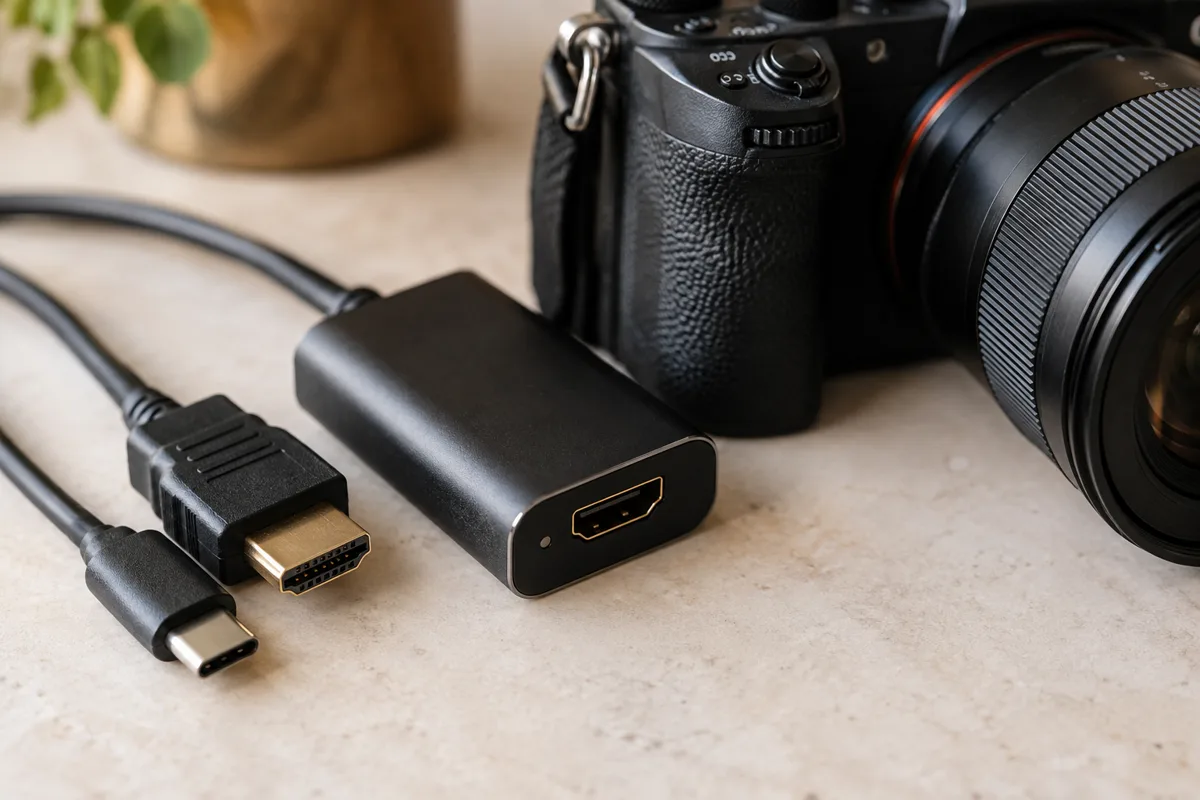
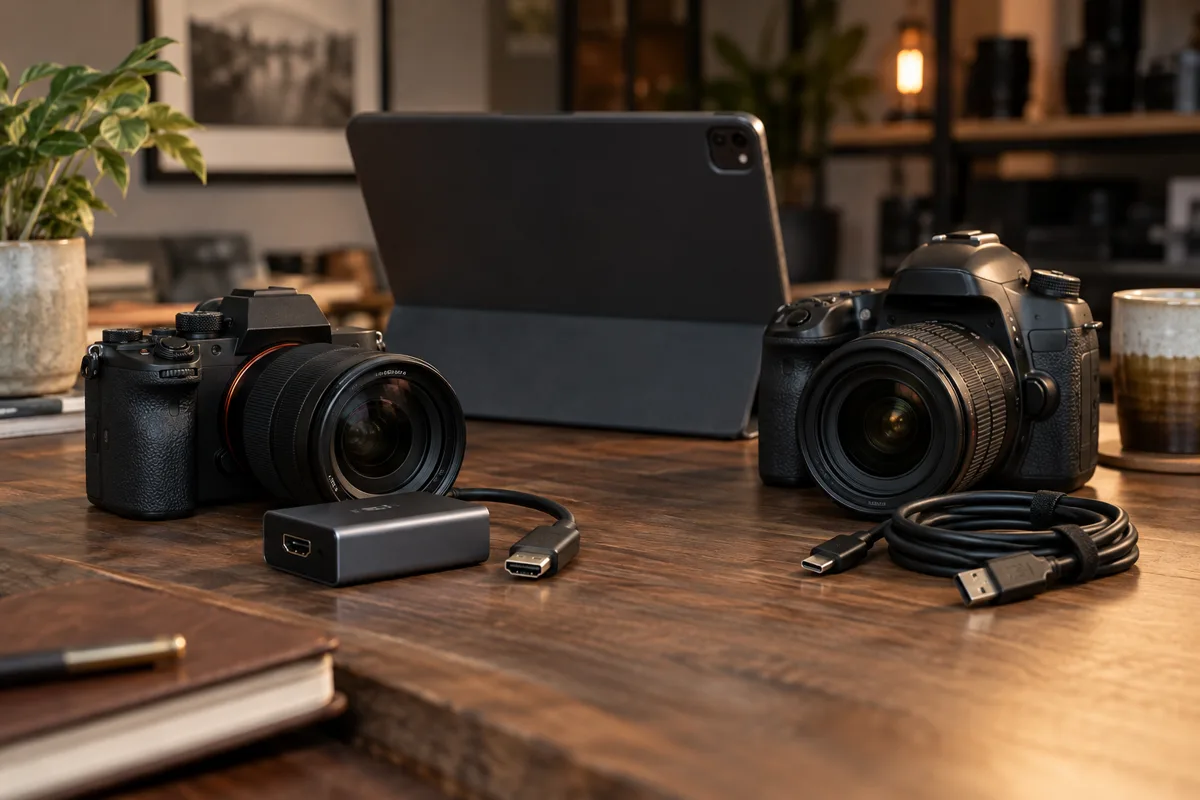
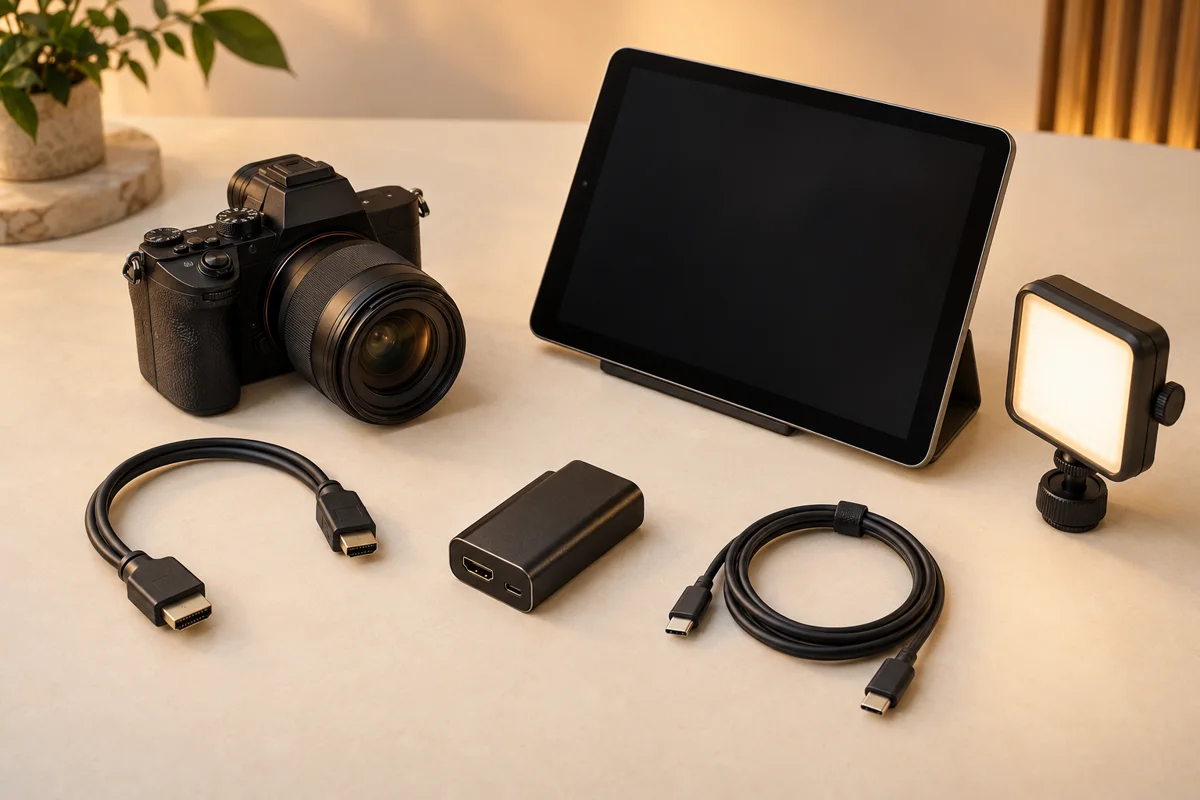
ShutterTrax Pro can use external cameras that the tablet exposes to the app. On iPad, the app’s hardware guidance requires a USB-C iPad running iPadOS 17 or later. A compatible USB webcam or HDMI capture card can provide the camera feed.
A DSLR or mirrorless camera needs a clean HDMI output and a compatible capture card for this workflow. An HDMI feed is different from direct tethered still photography: the image quality and available controls depend on the camera, capture device and tablet. Test the exact combination before a paid event.
Do a rehearsal, including the handoff
Open the event while connected, check the guest screen and capture a complete session. If your plan includes cloud sharing, open an uploaded photo on a second device. Then repeat with Wi-Fi off to check local capture and reconnect to confirm uploads resume.
Free lets you try the local photo workflow. Creator adds cloud storage and email delivery; Pro adds external camera support and brand kits. Current prices and limits are shown inside the app.
A few common questions
Do I need a separate camera for an iPad photo booth?
No. You can start with the iPad’s built-in camera. An external camera is optional and requires ShutterTrax Pro and compatible hardware.
Does ShutterTrax also run on Android?
Yes. ShutterTrax runs on Android tablets as well as iPad. External USB camera support depends on the Android tablet and its system camera support.
Make your next booth a ShutterTrax booth.
Try the local photo workflow for free. Explore cloud sharing and external camera options inside the app.
Get the app